


-

About Flexfilm 2
-

Getting Started 10
-
Core Fundamentals 10
-
-

Orders & Support 83
-
Shipping 10
-
Dealer Rewards 13
-
Ordering & Account 7
-
Pre-Cut Patterns 2
-
General 9
-
Warranty 6
-
Billing & Tax 3
-
Route Package Protection 2
-
Returns & Refunds 2
-
Shop Pay 2
-
Training 1
-
Dealer & Installer Program 4
-
Selling & Quoting 9
-
Marketing & Growth 8
-
Business Operations 5
-
-

Installation Resources 19
-
Architectural 4
-
Automotive 5
-
General 10
-
-

Architectural Window Film 55
-
Safety & Compatibility 18
-
Ownership 2
-
Fundamentals 16
-
Buying Guides 4
-
Performance & Privacy 6
-
Product Guides 9
-
-

Automotive Window Film 40
-
Installation & Ownership 18
-
Product Guides 11
-
Legal & Compliance 3
-
Buying Guides 8
-
-

Tools 10
-
Cutting & Prep 3
-
Application 3
-
Measurement & Layout 2
-
Specialty 2
-
-

Plotters 8
-
Ownership 6
-
Buying Guides 2
-
-

FlexCut Software 25
-
Account & Licensing 5
-
Getting Started 10
-
Troubleshooting 2
-
Using FlexCut 8
-
-

Paint Protection Film (PPF) 10
-
Ownership 3
-
Fundamentals 4
-
Product Guides 3
-
-

Surface Coatings 13
-
Product Guides 7
-
Fundamentals 3
-
Ownership 3
-
Installation and Registration


Installation and Registration
System Requirements
- Operating System: Windows 10/11
- CPU and RAM: No special requirements
- Disk Space: 400 MB to 1.5 GB
- The Combo patterns package may take up to 1.5 GB of disk space.
- USB Ports: 2 USB ports are recommended. USB-A extenders may not work. Modern laptops with USB-C can be used with a USB-A adapter.
Prerequisites
- Internet connection
- No downloadable installer on our website
If you are purchasing FlexCut for the first time, you will receive a USB key in the mail within one week. After you receive your USB security key, please call 1-817-354-9200. Support will help you install and update the software to get you cutting in no time.
- USB dongle and active subscription with a license key number starting with 74
Right after you sign up and create an account, your key number starts with 71 and your software will work in DEMO mode. Although you will have access to the Patterns Database, DEMO mode will allow you to cut only 15 nodes, meaning only basic shapes. This is enough to test your plotter.
The License Key that starts with 71 requires no USB dongle.
The USB Dongle
When you decide to upgrade your DEMO license to get the full software functionality, you will be assigned a 74* key, which comes with a USB dongle.
The USB dongle contains the license information and is represented by the license key number written on it.
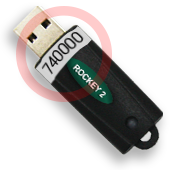
The USB dongle is a security device essential for cutting. Without it, the software will function only in DEMO mode.
We ship the USB dongle with next-day air service.
The USB dongle is the property of Flexfilm; we do not charge for it when you first buy it. However, replacement of a lost or damaged dongle will cost you $400.
We also expect you to return the dongle if you choose to cancel your subscription or get a refund.
Subscription Termination
If you choose to terminate your subscription, please contact our office to obtain a shipping label and return the USB dongle to us.
Initial Setup Instructions
- Ensure the USB dongle is not connected to your PC before installing.
- Call 1-817-354-9200 and our support team will install the software with you.
- Once the installation is complete, insert the USB dongle into your PC.
- Launch the software and proceed with the registration process.
- Set up your plotter and perform a test cut.
Registration
To complete the registration, you will need the License Key number (either 74xxxxx or 71xxxxx) and the Password.
Your License Key number starting with 74 is written on the USB dongle. The DEMO License Key number starting with 71 does not have a USB dongle.
If you have forgotten your password, you can recover it on the registration form.
- Launch the software.
- If this is your first time running the software, you will see a form with three sections: Agreement, Register, and Update Patterns Database.
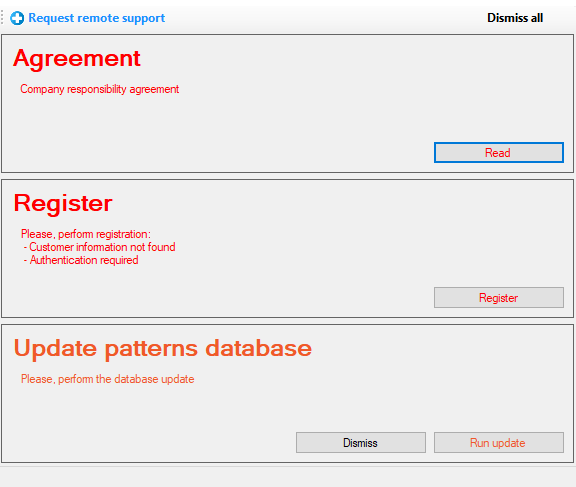
This form will not appear if registration was completed earlier.
- Click the “Register” button.
- On the Registration Form, enter the License Key number and Password, then click “Register.”
You should receive a green message saying, “Registered successfully!” If you do not see this message, please contact our tech support team.
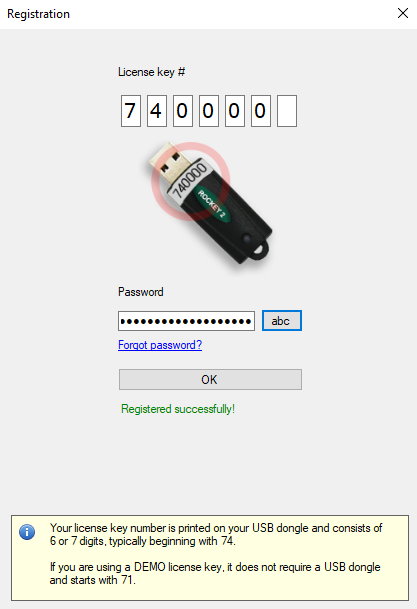
- Click “OK” to return to the main form.
- Click the “Run Update” button in the Update Patterns Database section.