


-

About Flexfilm 2
-

Getting Started 10
-
Core Fundamentals 10
-
-

Orders & Support 83
-
Shipping 10
-
Dealer Rewards 13
-
Ordering & Account 7
-
Pre-Cut Patterns 2
-
General 9
-
Warranty 6
-
Billing & Tax 3
-
Route Package Protection 2
-
Returns & Refunds 2
-
Shop Pay 2
-
Training 1
-
Dealer & Installer Program 4
-
Selling & Quoting 9
-
Marketing & Growth 8
-
Business Operations 5
-
-

Installation Resources 19
-
Architectural 4
-
Automotive 5
-
General 10
-
-

Architectural Window Film 54
-
Safety & Compatibility 17
-
Ownership 2
-
Fundamentals 16
-
Buying Guides 4
-
Performance & Privacy 6
-
Product Guides 9
-
-

Automotive Window Film 40
-
Installation & Ownership 18
-
Product Guides 11
-
Legal & Compliance 3
-
Buying Guides 8
-
-

Tools 10
-
Cutting & Prep 3
-
Application 3
-
Measurement & Layout 2
-
Specialty 2
-
-

Plotters 8
-
Ownership 6
-
Buying Guides 2
-
-

FlexCut Software 25
-
Account & Licensing 5
-
Getting Started 10
-
Troubleshooting 2
-
Using FlexCut 8
-
-

Paint Protection Film (PPF) 10
-
Ownership 3
-
Fundamentals 4
-
Product Guides 3
-
-

Surface Coatings 13
-
Product Guides 7
-
Fundamentals 3
-
Ownership 3
-
Price Tables - Custom Pattern Pricing Setup


Price Tables - Custom Pattern Pricing Setup
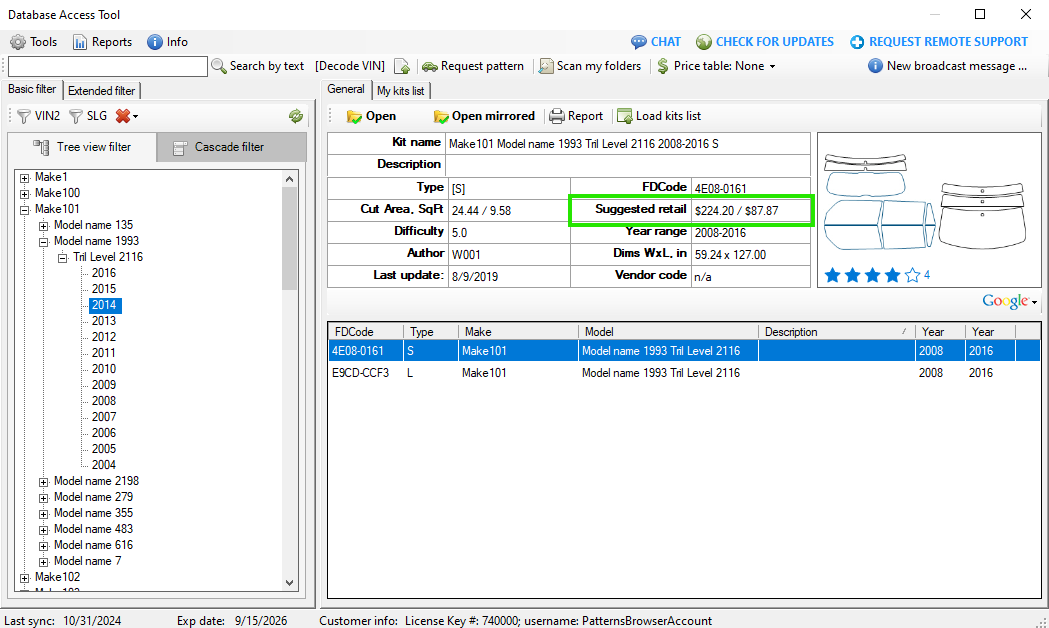
Each pattern in the database includes a Suggested Retail Price (MSRP). The suggested price is based on several factors, including:
- Car Body Type: Installation complexity can vary by vehicle type, such as pickup, convertible, or sedan.
- Square Footage (SQFT): Larger surfaces generally require more material, time, and installation effort.
- Roll Width: Roll width helps estimate material waste during installation.
- Material Multiplier: Material costs vary. For example, window tint films are generally less expensive than paint protection films.
Suggested prices are provided as a reference and may not reflect actual market pricing.
Price Tables allow you to create custom pricing based on your own business needs.
You can:
- Add a specific dollar amount to the MSRP.
- Apply pricing multipliers.
- Calculate pricing based on pattern square footage.
You can create multiple Price Tables, but only one Price Table can be active at a time.
Price Tables created in the software can also be uploaded to the server, making your custom pricing available on the website.
Price Table Creation
- Click “Open Pattern from the Database”. The Database Access Tool will open in a separate window.
- Go to Price Tables > Manage Price Tables.
The Price Tables window will open, allowing you to create Price Tables and define pricing rules.
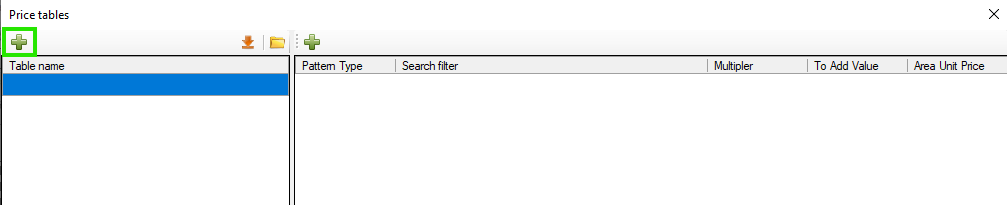
- Click the green plus sign in the upper-left corner to create a new Price Table.
- The default name <New Price Table> will appear in the Table Name section.
- Type your preferred name to rename the Price Table.
Add Pricing Rules
After creating the Price Table, you need to add one or more pricing rules.
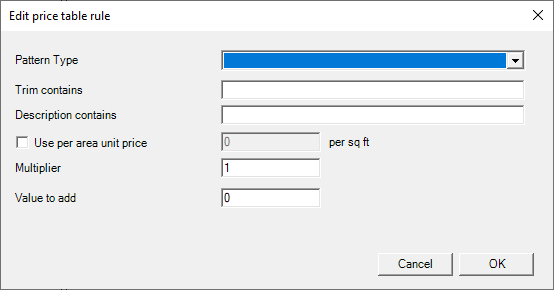
- Click the green plus sign in the upper-left corner of the second column.

The Edit Price Table Rule window will appear.
Select a Pattern Type
In the Pattern Type drop-down menu, select the type of pattern to which the rule should apply.
Add a Dollar Amount to MSRP
To add a specific amount to the suggested price, enter the amount in the Value to Add field.
For example, to add $50 to the MSRP of all Short and Long patterns, use the following settings:
- Pattern Type: Short and Long
- Multiplier: 1
- Value to Add: 50
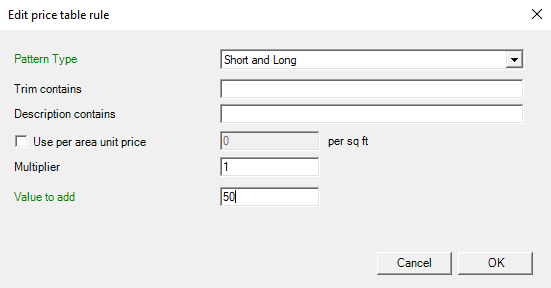
Click “OK” to create the rule.
You can create multiple rules within a single Price Table by repeating the same process.
For example, you could create a second rule that adds $30 to the MSRP of all Graphics patterns.

How to Apply a Price Table
- Close the Price Tables window to return to the Database Access Tool.
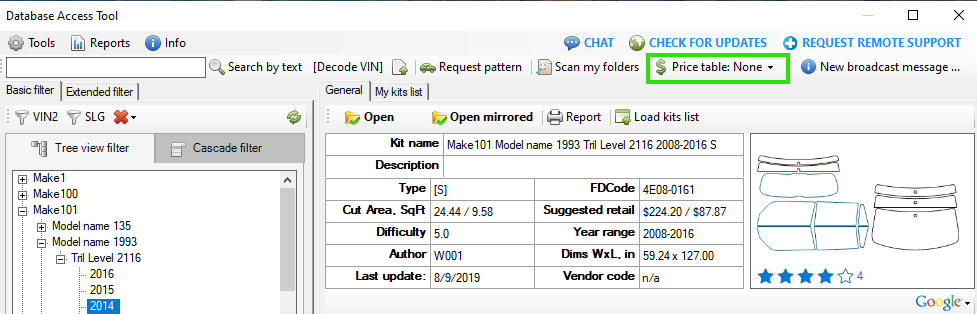
- In the Price Table drop-down menu, select the Price Table you want to use.
- Click the Reload Data button in the Basic Filter section to apply the Price Table rules.

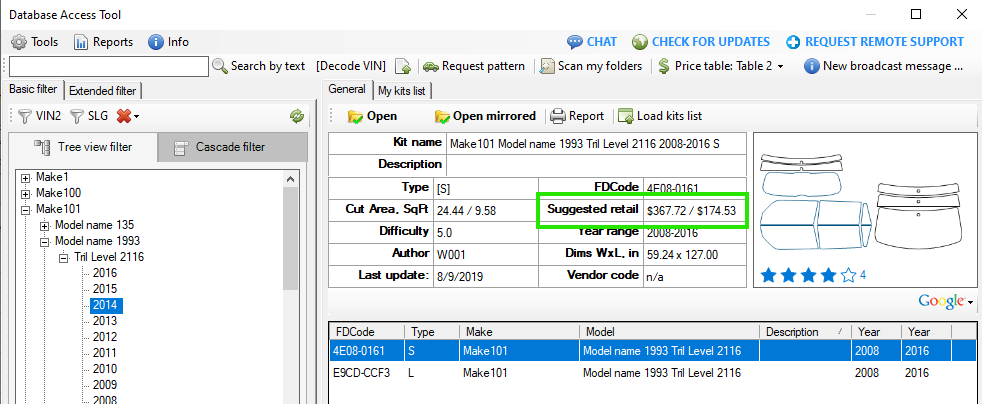
After the Price Table is applied, the Suggested Retail Prices will update based on the rules you created.
For example, if your Price Table adds $50 to Short and Long patterns and $30 to Graphics patterns, those amounts will be reflected in the displayed prices.
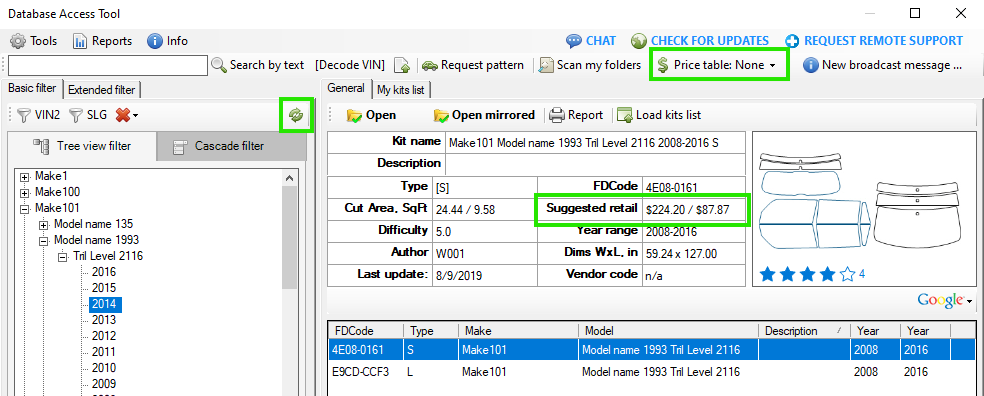

To return to the original Suggested Retail Prices, select “None” in the Price Table drop-down menu.
Remember: After selecting or changing a Price Table, click Reload Data to apply the pricing rules.
Setting Up Rules Based on Square Footage
Price Table rules can also calculate pricing based on a pattern's square footage.
The Database Access Tool displays the square footage for each pattern.
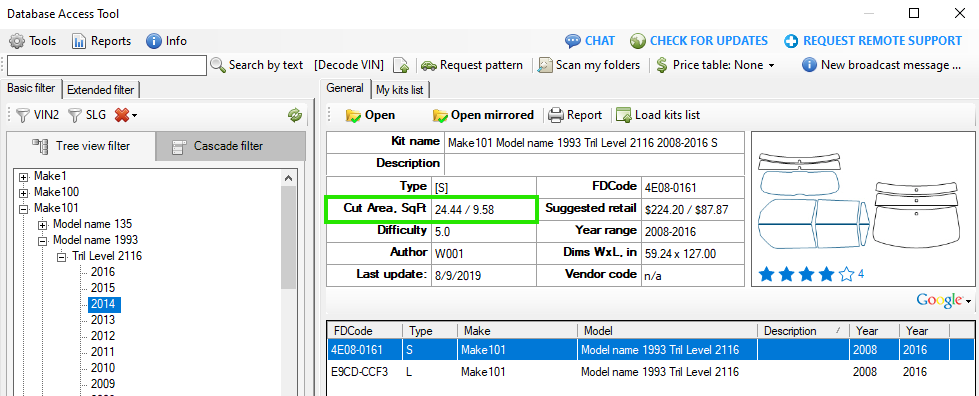
This allows you to create pricing based on your material cost and installation price per square foot.
For example, suppose:
- Your film costs $10 per square foot.
- You charge $3 per square foot for installation.
- You want to add $50 per pattern to account for waste.
Your total per-square-foot amount would be $13.
The Price Table rule would be configured as:
- Pattern Type: Short and Long
- Use per area unit price: Enabled
- Per sq ft: 13
- Multiplier: 1
- Value to Add: 50
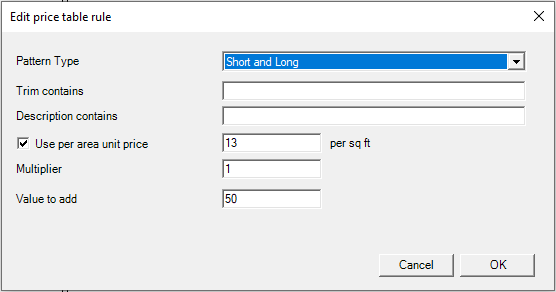
When you apply the Price Table, the Suggested Retail Price will automatically update according to the square footage of the selected pattern and the pricing criteria you entered.