

-

About Flexfilm 2
-

Getting Started 10
-
Core Fundamentals 10
-
-

Orders & Support 83
-
Shipping 10
-
Dealer Rewards 13
-
Ordering & Account 7
-
Pre-Cut Patterns 2
-
General 9
-
Warranty 6
-
Billing & Tax 3
-
Route Package Protection 2
-
Returns & Refunds 2
-
Shop Pay 2
-
Training 1
-
Dealer & Installer Program 4
-
Selling & Quoting 9
-
Marketing & Growth 8
-
Business Operations 5
-
-

Installation Resources 19
-
Architectural 4
-
Automotive 5
-
General 10
-
-

Architectural Window Film 54
-
Safety & Compatibility 17
-
Ownership 2
-
Fundamentals 16
-
Buying Guides 4
-
Performance & Privacy 6
-
Product Guides 9
-
-

Automotive Window Film 40
-
Installation & Ownership 18
-
Product Guides 11
-
Legal & Compliance 3
-
Buying Guides 8
-
-

Tools 10
-
Cutting & Prep 3
-
Application 3
-
Measurement & Layout 2
-
Specialty 2
-
-

Plotters 8
-
Ownership 6
-
Buying Guides 2
-
-

FlexCut Software 25
-
Account & Licensing 5
-
Getting Started 10
-
Troubleshooting 2
-
Using FlexCut 8
-
-

Paint Protection Film (PPF) 10
-
Ownership 3
-
Fundamentals 4
-
Product Guides 3
-
-

Surface Coatings 13
-
Product Guides 7
-
Fundamentals 3
-
Ownership 3
-
Database Access Tool Filters


Database Access Tool Filters
The Database Access Tool filters are designed to help you quickly locate the exact patterns you need. Filters can narrow your search based on vehicle make, model, year, trim, pattern type, and other criteria, helping save time and reduce errors.
The Database Access Tool contains two filter tabs:
- Basic Filter
- Extended Filter
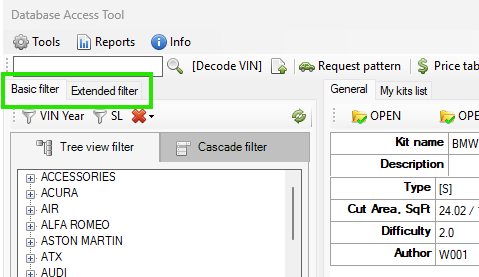
Basic Filter
Under the Basic Filter tab, there are two ways to browse patterns:
- Tree View
- Cascade View
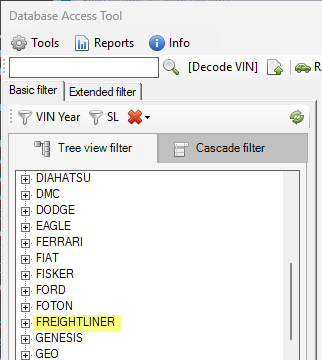
Tree View Filter (TINT)
The Tree View filter sorts patterns in the following order:
Make > Model > Trim > Year
For example: Jeep > CHEROKEE > 4 DR SUV > 2001
Expand each category until you locate the desired pattern.
Cascade Filter (PPF)
The Cascade filter sorts patterns in the following order:
Year > Make > Model > Trim
For example: 2001 > Jeep > WRANGLER > RUBICON
Tip: The Tree View and Cascade filters were designed with different pattern types in mind. Historically, window tint installers tend to begin their search with the vehicle make, while PPF installers tend to begin with the year.
You are not limited to these defaults. You can configure the filter types based on the workflow that works best for you.
Filtering by Pattern Type
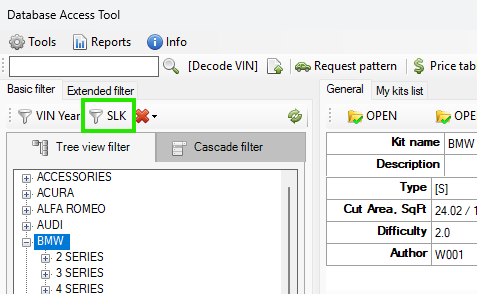
To filter by Pattern Type, click the funnel icon (Pattern Type Filter button).
The label next to the funnel displays the currently selected pattern types. For example, the screenshot below shows SLK.
In the Pattern Types window, select the types of patterns you want to display.
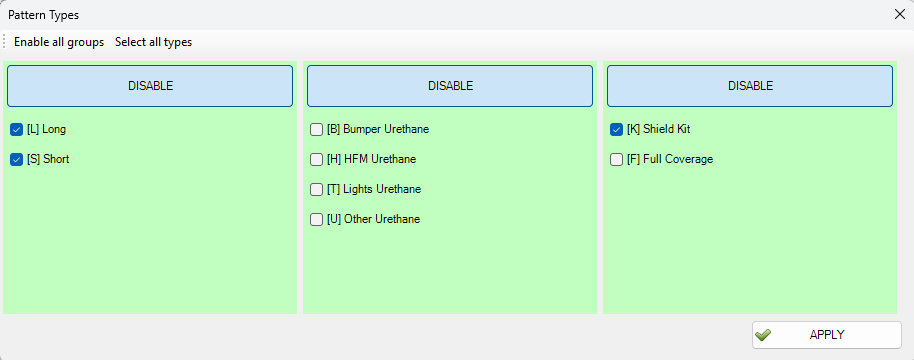
- Check individual pattern types to include them.
- Click “Select All Types” to select all available options.
- Click “DISABLE” in the Pattern Type Group column to disable an entire group of patterns.
When a group is disabled, the button changes to “ENABLE”, allowing you to restore that group later.
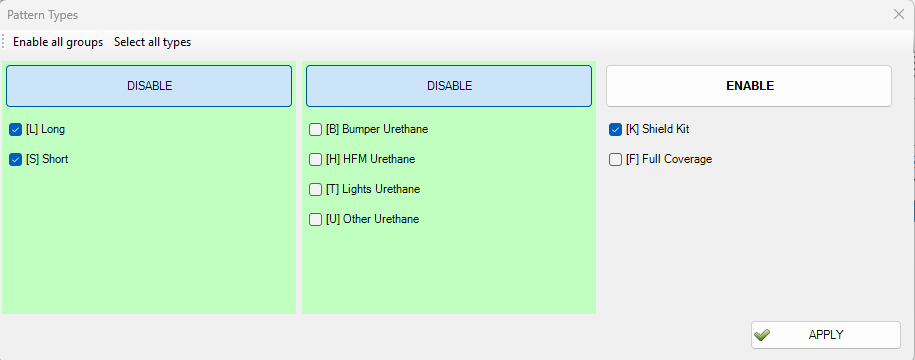
Click “Apply” to confirm your selection.
The selected pattern types will appear as letters on the Pattern Type Filter button. For example, selecting [L] Long and [S] Short will display SL on the button.

Filtering by VIN Year
Every Vehicle Identification Number (VIN) has the model year encoded within it. For U.S. VINs, the model year is identified by the 10th character of the VIN.
To view the full VIN year decoding table, navigate to:
Main Menu > Info > VIN 10th Char
The table shows which model year corresponds to each possible VIN character.
To filter patterns using the VIN:
- Click the “VIN Year” button.
- Enter the 10th character of the vehicle's VIN.
In some cases, the decoder may return two possible model years. This happens because VIN year characters repeat over time.
Some characters, such as “1” and “I”, are excluded. This leaves a maximum of 30 possible year encodings. Because this VIN system has been used for more than 30 years, certain characters are reused in later cycles.
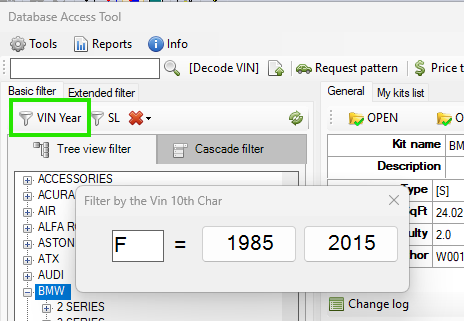
Click the desired year to apply the filter. The pattern tree will then display only patterns for the selected year.
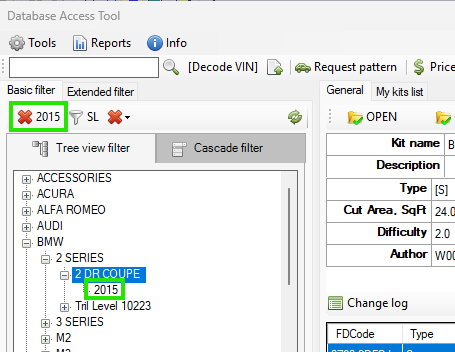
The VIN Year button will update to show the applied filter. To remove the filter, click the red cross on the filter button.
Extended Filter
The Extended Filter allows you to further refine the Basic Filter by:
- Defining a year range
- Filtering by make
- Filtering by author
Year Range Filter
The Year Range filter allows you to restrict the displayed patterns based on vehicle year.
- Check “Enable filter by year.”
- Select the desired year.
- Choose whether to display patterns older or newer than the selected year.
For example, if you select all patterns newer than 2013, only patterns from 2013 onward will appear in the Basic Filter.
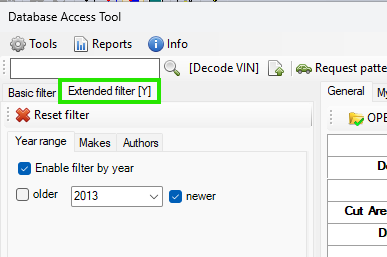
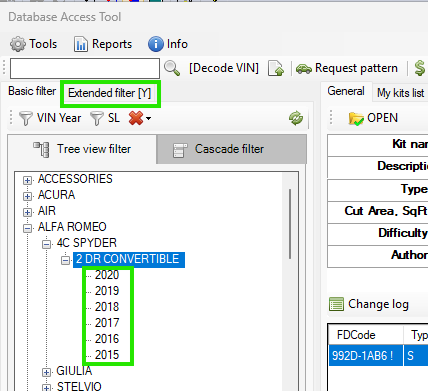
Click “Reset Filter” to remove manual filtering.
Make Filter
The Make filter limits the displayed patterns by vehicle manufacturer.
- Check “Enable filter by make.”
- All available makes are selected by default.
- Click “Select None” to deselect all makes.
- Select the specific makes whose patterns you want to display.
For example, selecting only Jeep will display only Jeep patterns in the Basic Filter.
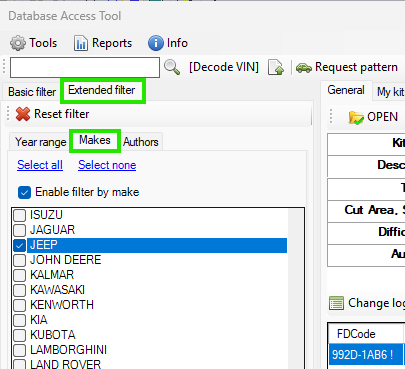
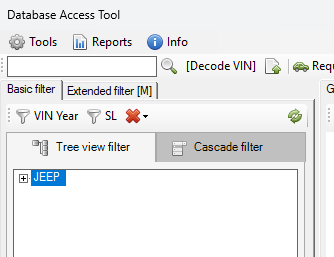
Return to the Basic Filter tab and click the Refresh button to apply your Extended Filter selection.
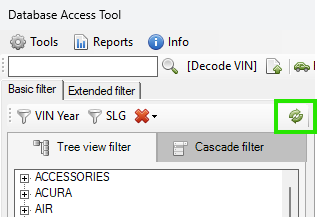
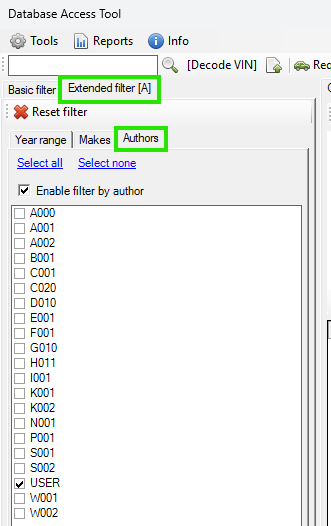
Authors Filter
The Authors filter restricts the displayed patterns based on their creator.
- Check “Enable filter by author.”
- All authors are selected by default.
- Click “Select None” to deselect all authors.
- Select the specific authors whose patterns you want to display.
If you select USER as the author, only patterns modified by you will be displayed. USER is the default name of the current license holder.
Color by Author Feature
The Color by Author feature allows you to visually highlight patterns created by specific authors in the Tree View.
In the Database Access Tool, go to:
Tools > Settings
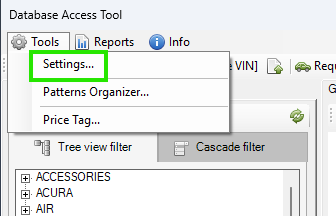
In the Settings window:
- Open the “Colors by Author” tab.
- Check “Use colors for specified authors.”
- Select the author you want to highlight.
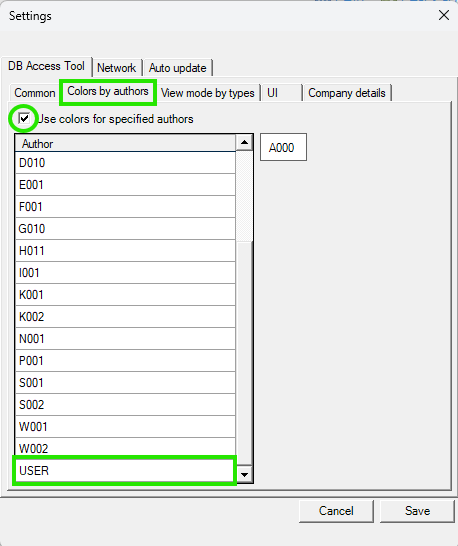
For example, to highlight patterns you have modified, select USER.
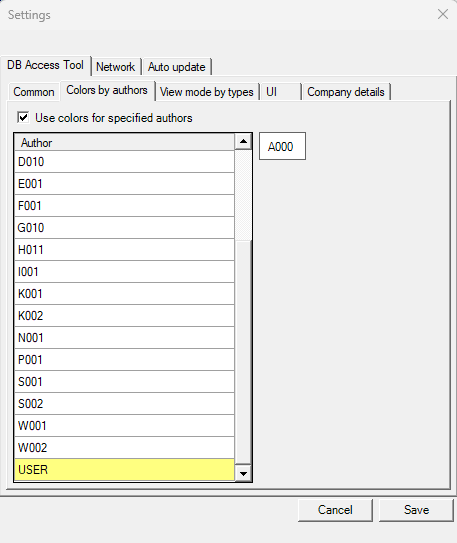
Right-click USER and choose how you want patterns from that author to appear in the Tree View. You can:
- Set a background color
- Set a text color
- Make the text bold
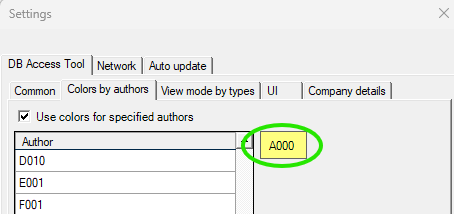
Tip: You can also set colors using the A000 button. Click the button's background to set the background color for the selected author, or click the lettering to set the font color.
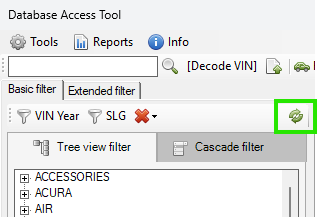
Return to the main Database Access Tool screen and click Refresh.
Makes and models containing patterns created by the selected author will now be highlighted in the Tree View, making them easier to locate.
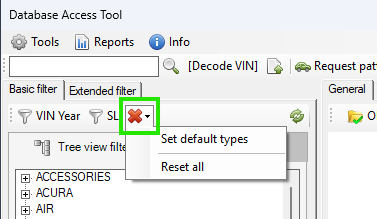
Reset Filter
The Reset Filter drop-down provides two options:
- Set Default Types – Resets the Tree View and Cascade filter settings to their defaults.
- Reset All – Resets both the Basic and Extended filters.